

ก่อนนำไปประยุกต์ใช้ให้เข้าใจตรงกันก่อนนะครับ
Domain = demo.local
คำสั่ง PowerShell เพื่อเปลี่ยน List User Account
Get-Help Get-ADUser -Parameter Properties(พิมพ์คำสั่งนี้เพื่อดูตัวอย่างการใช้งานคำสั่ง –Parameter ของ Get-ADUser)
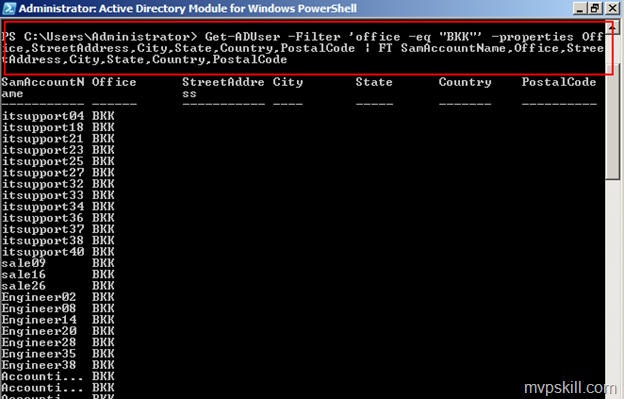
Get-ADUser -Filter ‘office –eq ”BKK”‘ –Properties Office,StreetAddress,City,State,Country,PostalCode | Format-Table SamAccountName,Office,StreetAddress,City,State,Country,PostalCode (พิมพ์คำสั่งนี้เพื่อให้ PowerShell ทำการ List รายชื่อของพนักงานที่อยู่ Office BKK โดยเรียงข้อมูลที่ต้องการ)
1. คำสั่งเกี่ยวกับ Groups
Get-Help Get-ADGroup –Full (พิมพ์คำสั่งนี้เพื่อดูตัวอย่างการใช้งานคำสั่ง)
Get-ADGroup -Filter *
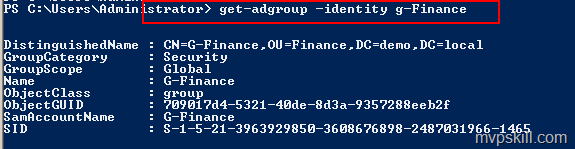
Get-ADGroup -Identity Sales (พิมพ์คำสั่งนี้เพื่อดู Group G-Finance)
Get-Help Get-ADGroupMember –Full(พิมพ์คำสั่งนี้เพื่อดูตัวอย่างการใช้งานคำสั่ง)
Get-Help Disable-ADAccount –Full(พิมพ์คำสั่งนี้เพื่อดูตัวอย่างการใช้งานคำสั่ง)
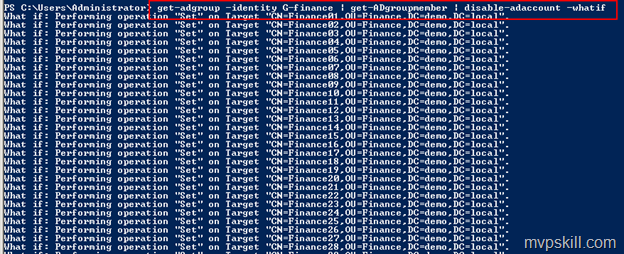
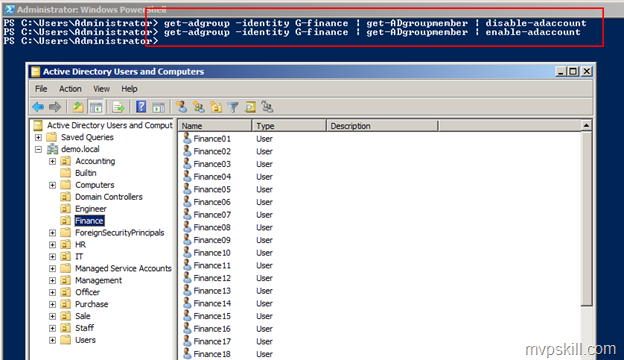
Get-ADGroup -Identity G-Finance | Get-ADGroupMember | Disable-ADAccount –WhatIf
การ Disable User ใน Group / Enable User ใน Group ด้วย Powershell
Get-ADGroup -Identity G-Finance | Get-ADGroupMember | Disable-ADAccount
Get-ADGroup -Identity G-Finance | Get-ADGroupMember | Enable-ADAccount
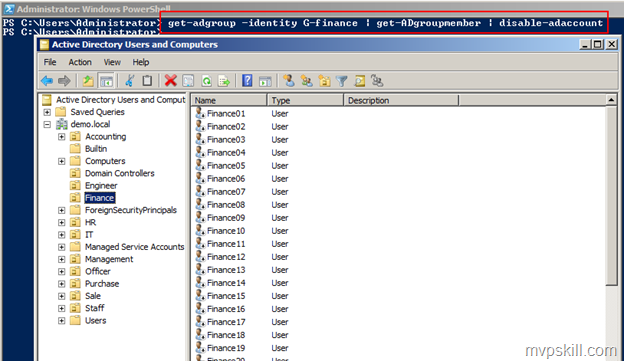
ตัวอย่างการ Enable User ใน Group Finance
การใช้งาน Powershell กับ OU
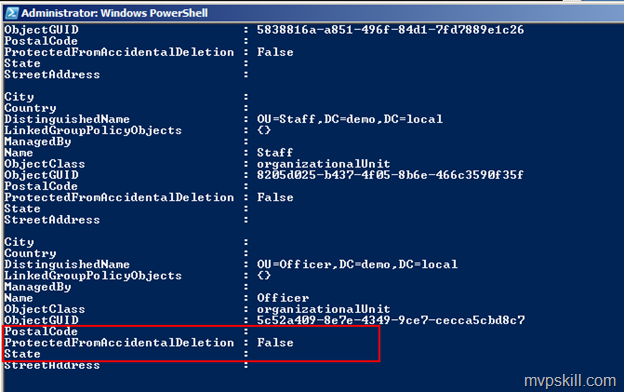
Get-Help Get-ADOrganizationalUnit –Full (พิมพ์คำสั่งนี้เพื่อดูตัวอย่างการใช้งานคำสั่ง)
Get-ADOrganizationalUnit -Filter * -Properties ProtectedFromAccidentalDeletion (พิมพ์คำสั่งนี้เพื่อดูว่า OU ไหนยังไม่ได้มีการป้องกันการถูกลบโดยไม่ตั้งใจ)
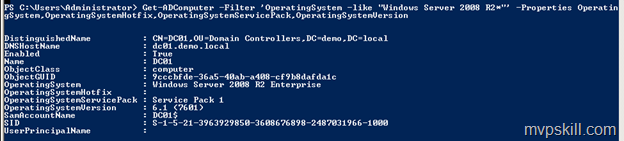
ใช้ Powershell ค้นหาเครื่อง Computer ที่เป็น Windows2008R2
Get-ADComputer -Filter ‘OperatingSystem -like “Windows Server 2008 R2*”‘ –Properties OperatingSystem,OperatingSystemHotfix,OperatingSystemServicePack,OperatingSystemVersion
Get-Help ConvertTo-Html –Full(พิมพ์คำสั่งนี้เพื่อให้แปลงผลที่ได้เป็น html)
Get-Help Out-File –Full(พิมพ์คำสั่งนี้เพื่อดูตัวอย่างการใช้งานคำสั่ง)
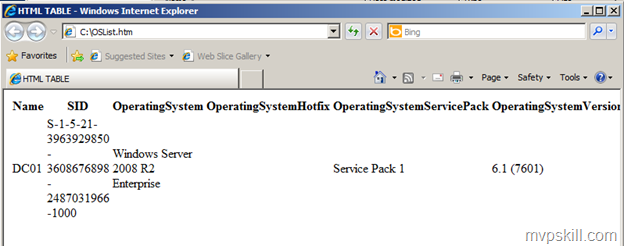
คำสั่งด้านล่างนี้ใช้เพื่อสร้าง Report ออกมาเป็น .html ครับ
Get-ADComputer -Filter ‘OperatingSystem -like “Windows Server 2008 R2*”‘ –Properties OperatingSystem,OperatingSystemHotfix,OperatingSystemServicePack,OperatingSystemVersion | ConvertTo-Html -Property Name,SID,OperatingSystem* | Out-File C:\OSList.htm
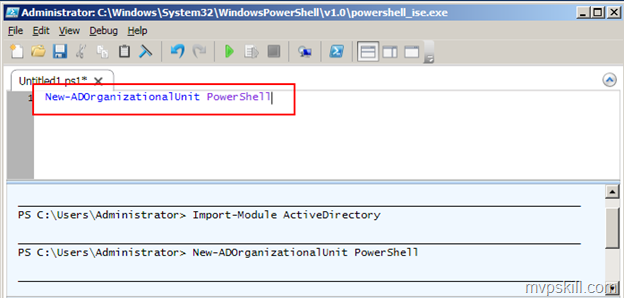
ใช้คำสั่ง PowerShell สร้าง OU
ใช้คำสั่งด้านล่างนี้ครับ (ในรูปตัวอย่างผมใช้งานจาก PowerShell ISE ทำการ RUN นะครับเพราะสามารถใช้ TAB ได้)
new-adorganizationalunit PowerShell
ใช้คำสั่ง PowerShell สร้าง User
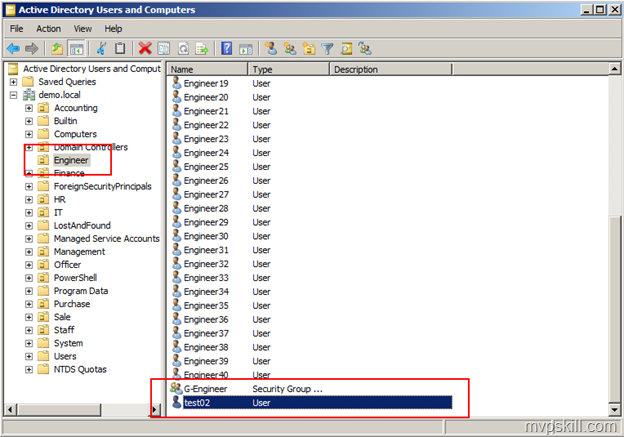
New-ADUser -SamAccountName test02 -Name “test02” -UserPrincipalName [email protected] -AccountPassword (ConvertTo-SecureString -AsPlainText “password@1” -Force) -Enabled $true -PasswordNeverExpires $true -Path “OU=Engineer,DC=demo,DC=local”
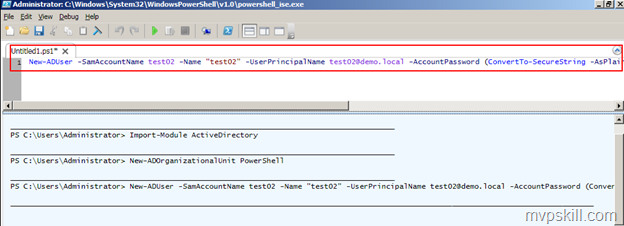
ผลลัพธ์ที่ได้จากการ RUN PowerShell เพื่อสร้าง User = Test02 อยู่ใน OU = Engineer ครับ ตามรูปด้านล่าง